
Your first listing, step by step
Twenty minutes from installing the app to a listing neighbours can find. No account details needed to read this — everything below is what you will see on your own screen.
Three things worth having ready
None of them take long, and having them ready is the difference between a listing posted in twenty minutes and one abandoned halfway.
Three to five photos of your own work
Not stock pictures and not the tools in the shop window. A finished bathroom, a repaired laptop, a cake you actually baked. People scroll past listings with no photos.
A price you are happy to name
One number, not a range. If the work varies, price the most common case and explain the rest in the description. “From” and “on request” are the two phrases people skip.
The address you work from
With the city in it. The exact street can stay hidden — that is a switch inside — but the city is what puts you in front of someone searching for a plumber in your town.
Fill in your profile first
The profile is what people read after your listing catches their eye. Half of them decide there, not on the listing.
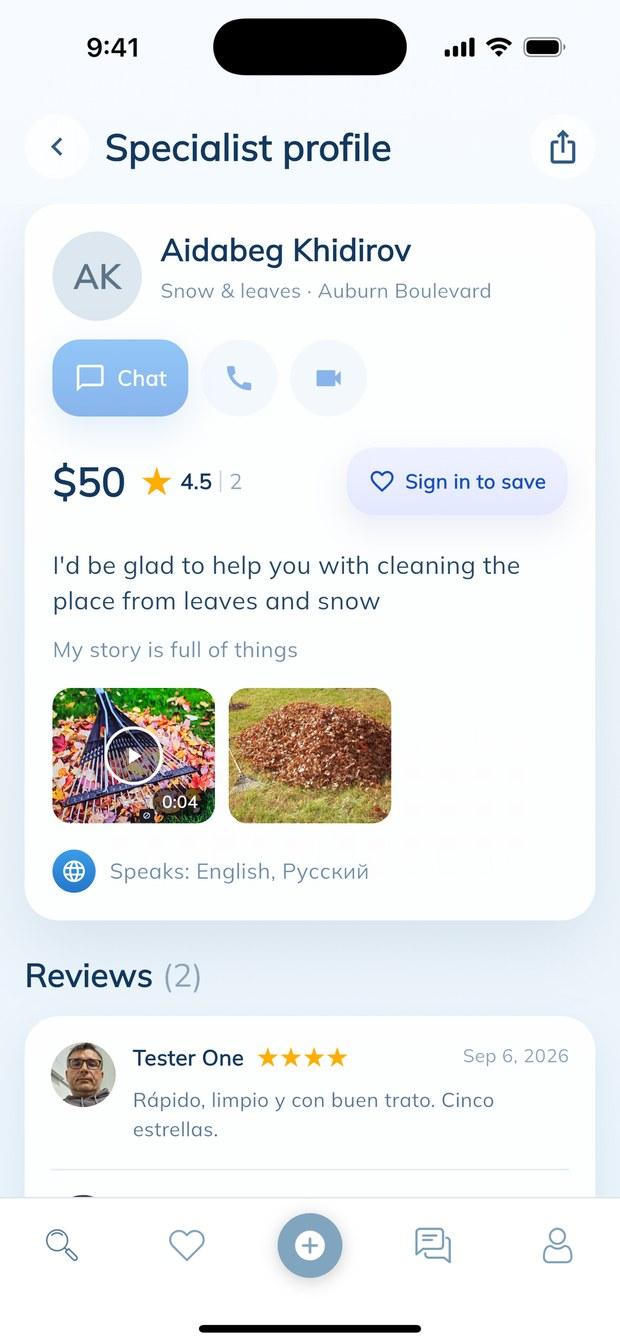
Photo, name, and the address of your page
Open Profile and tap Edit. Put a photo of your face, not a logo — people are choosing a person to let into their home. Write your name the way neighbours would say it.
Below the name sits Profile address: the short name in your link, whozapp.net/u/yourname. That is the address you send to a client, put on a business card or read out on the phone. Latin letters, digits and underscore, three to thirty characters.
- A face, not a logo or a van
- The name people actually call you
- Your own link, easy to dictate
Say what you do — and what you don’t
About myself is the one place where you speak in your own words. Three or four sentences is plenty. What you do, how long you have been doing it, and — this is the part most people leave out — what you do not take on.
“I fix taps, toilets and water heaters. Eleven years. I don’t do full bathroom renovations.” That last sentence saves you two pointless calls a week and costs you nothing.
Add the languages you speak. In a mixed neighbourhood it is often the deciding line.
- Three or four sentences, not a page
- Say what you don’t take on
- List every language you speak
Posting a service: five screens
Tap + in the middle of the bottom bar, then Add a new service. The app walks you through five screens and shows where you are at the top of each.
Profile — where you work
Your name comes across from the profile. What is new here is the map: tap the spot where you work and the address fills itself in. Typing it by hand works too, but the tap places you correctly on the map, and the map is how people find you.
Put the city in the address. “Auburn Boulevard” alone tells nobody anything; “Auburn Boulevard, Sacramento, CA” puts you in front of everyone searching for your trade in Sacramento.
If you work from home, turn on Hide the address from others. You stay on the map — only the exact street stops being shown.
- Tap the map instead of typing
- The city matters more than the street
- Working from home? Hide the exact address
Specialization — the shelf your work sits on
Fourteen categories: repairs, tech, home, garden, kids, beauty, health, tutoring, pets, transport, food, events, workshop, paperwork. Pick the one a person would look under, not the one that describes you best.
Someone whose tap is dripping opens “Repair & building”, never “Home & household”. If two fit, think about who is searching, not about what you call yourself.
- Choose from the searcher’s point of view
- One category per listing
- You can post more listings later
Services — one service, one price, one description
Pick the exact service inside the category, then set the price. One listing carries one service, and that is deliberate: it is what makes two prices next to each other mean the same thing.
The description asks for ten characters and deserves five sentences. Answer the three questions every client asks before writing: what exactly you do, how long it usually takes, and what is included in the price. Write it the way you would say it on the phone.
Do several different things? Publish this one, then add the next. Four separate listings bring four times the ways to be found; one listing that says “everything for the home” brings none.
- One service, one price — no ranges
- What, how long, what’s included
- Several trades? Several listings
Gallery — the part people actually look at
Up to ten photos and videos. The first one becomes the cover — the picture that shows on the map, in the list and when someone sends your link to a friend. Drag the best one to the front.
Tap Add media and the app offers four things: take a photo, record a video, choose a photo, choose a video. Work is often best photographed right where you are standing, so the camera is offered first, not buried inside the file picker.
A short video is worth three photos. Fifteen seconds of a finished job, filmed on the spot, says more than any description.
- The first file is your cover
- Shoot on the spot — two taps
- One short video beats three photos
All set — check it over and publish
The last screen shows the listing as other people will see it. Read the price and the first line of the description — those two are what a person decides on.
Publish. The listing appears on the map straight away, and on your own page whozapp.net/u/yourname within a few minutes.
- Check the price and the first line
- Live on the map immediately
- Editable at any time afterwards
Where your listing shows up
One listing lands in four places at once. Nothing to do — it happens on publishing.
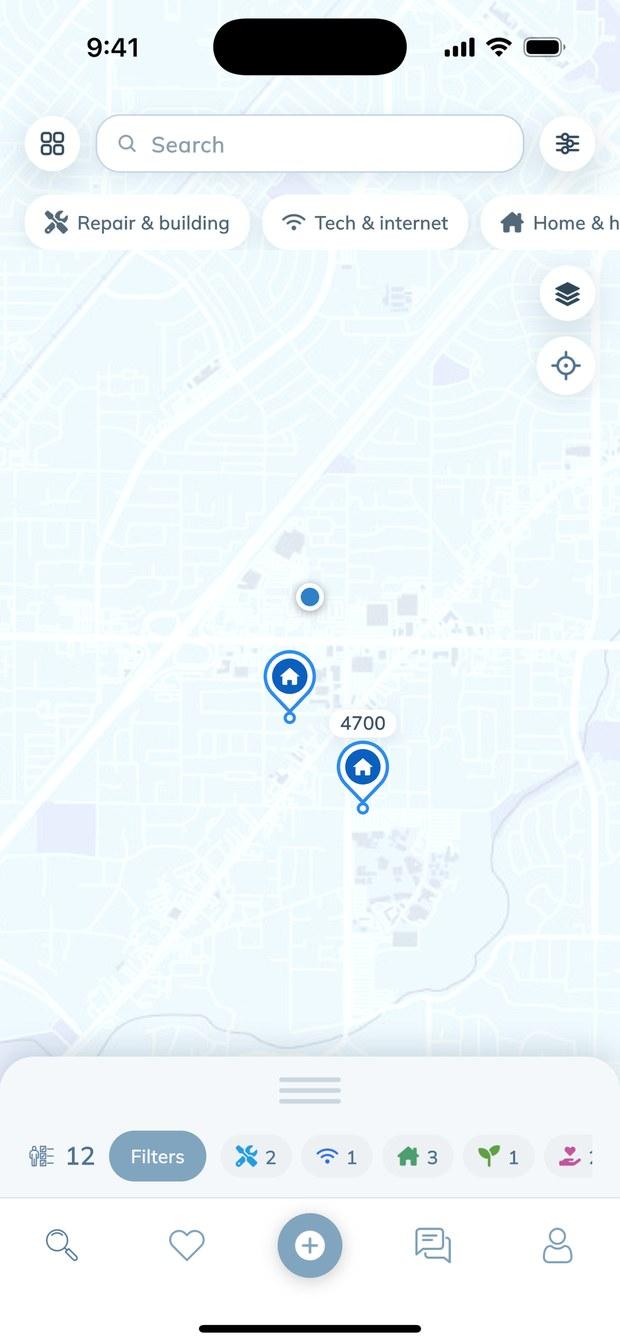
On the map and in the list
A pin where you work, and a card with your cover photo, price, distance and rating. This is where most people meet you.
Your page on the site, /u/yourname, holds everything at once: all your services, your photos and every review about you. That link works in a browser, so you can send it to someone who has not installed anything.
And a page for your trade in your town — “Plumbing in Carmichael” — collects everyone who does that work there. That is the page search engines show to a person typing “plumber Carmichael”, which is why the city in your address matters.
- A pin on the map, right away
- Your own page, shareable in a browser
- A place on the “trade in town” page
What happens after the first client
You agree the price and the time between yourselves — WhoZapp takes no commission and holds no money. When the work is done, ask the person to leave a review. Reviews sit next to the service they were left for, and they are what the next neighbour reads before writing to you. Five reviews change how a listing performs more than any wording ever will.
Asked by most people on their first day
Does any of this cost money?
No. Posting is free, there is no subscription, and no commission is taken from what you agree with a client. There is no advertising in the app either.
Can I add a second service?
Yes, and you should. Profile → My services → Add a service. Each listing is found separately, so four listings mean four ways in.
Will people see my home address?
Only if you let them. “Hide the address from others” leaves you on the map but hides the exact street. Your phone number is never shown — talking happens in the app.
How do I change a price later?
Profile → My services → the listing → edit. The change is live at once, including on your page on the site.
Nobody has written to me yet
Check three things: is there a cover photo, is the price a real number, and is the city in your address. Listings missing any of the three get a fraction of the messages.
Can I work in two towns?
Post the listing where you are based and say in the description how far you travel. The distance shown to a client is measured from your point on the map.
People nearby. No commission. No ads.
Install WhoZapp, post your first service, and let the neighbourhood find you.