
From “I need help” to “we agreed”
Six screens, in the order you meet them. No account needed to read this page.
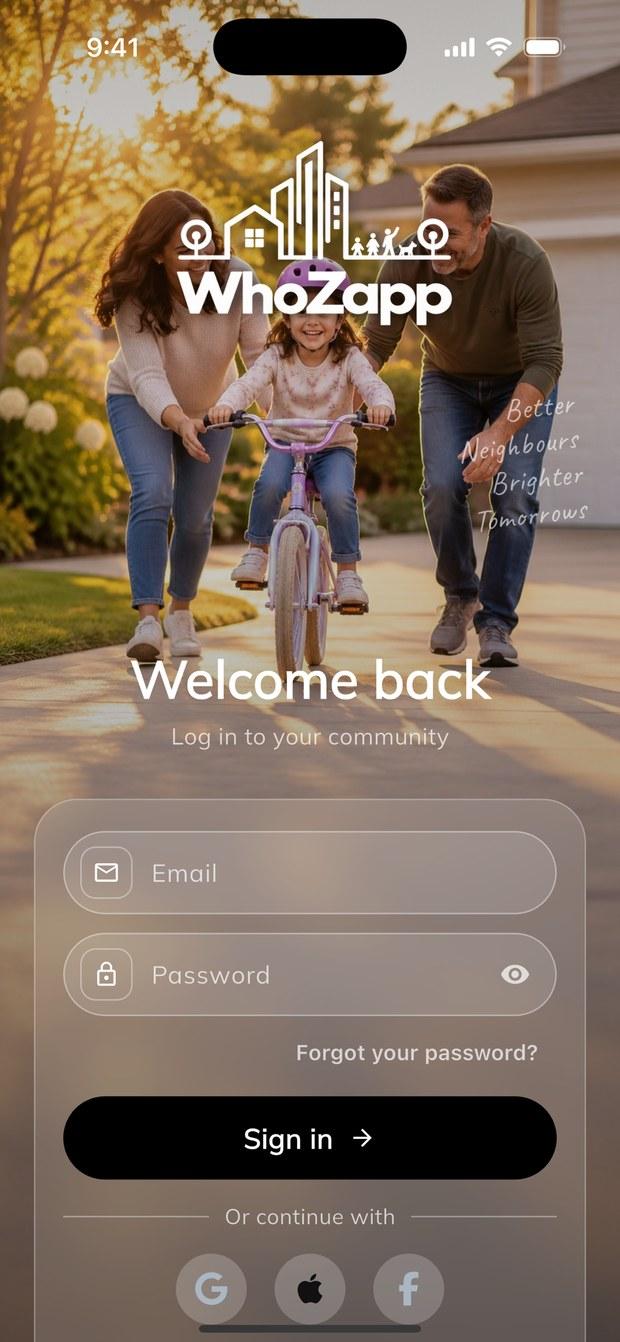
Install and sign in
WhoZapp is free and asks for no card. Install it, then sign in with email, Apple, Google or Facebook — whichever you already use.
The interface speaks six languages, so the first screen is usually the last time you think about it.
- Apple, Google or Facebook sign-in
- Six interface languages
- No card and no subscription
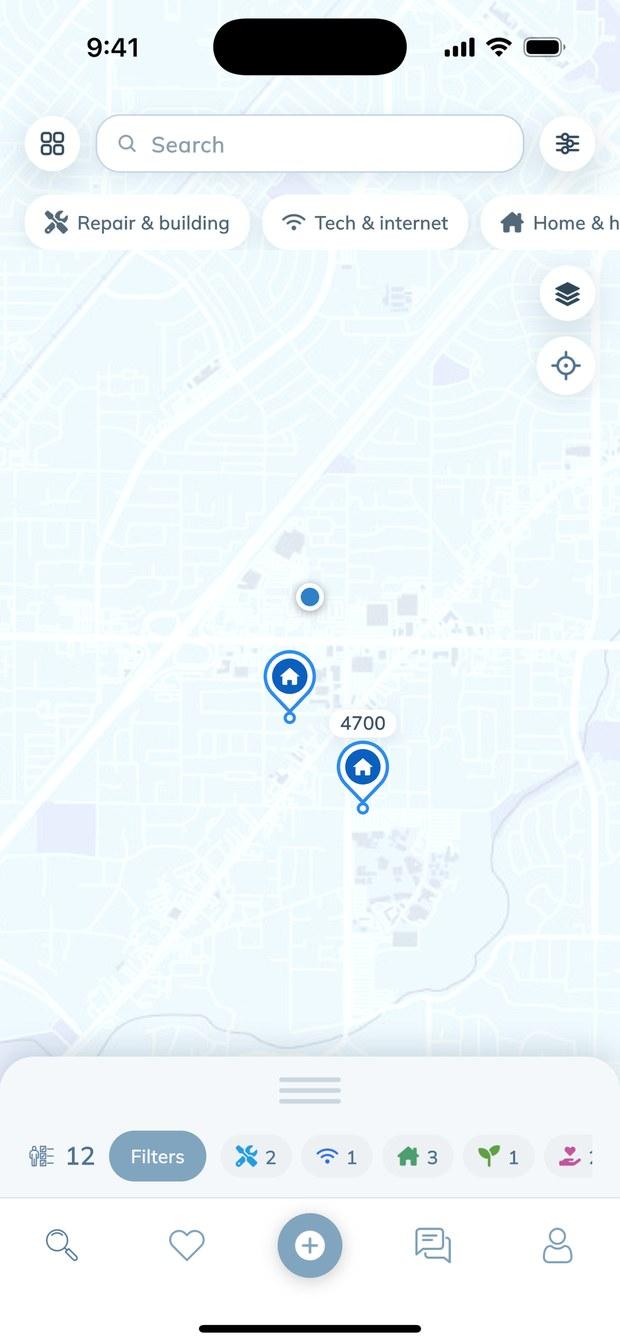
See who is nearby
The map opens first, because distance is the thing a list hides. Every pin is a real listing from a real person, placed where that person works.
The chips along the top narrow the map to one kind of work — repairs, tech, home, garden. The counter shows how many listings are left after the filter.
- Each pin is a live listing
- Filter by category in one tap
- Distance shown from where you are
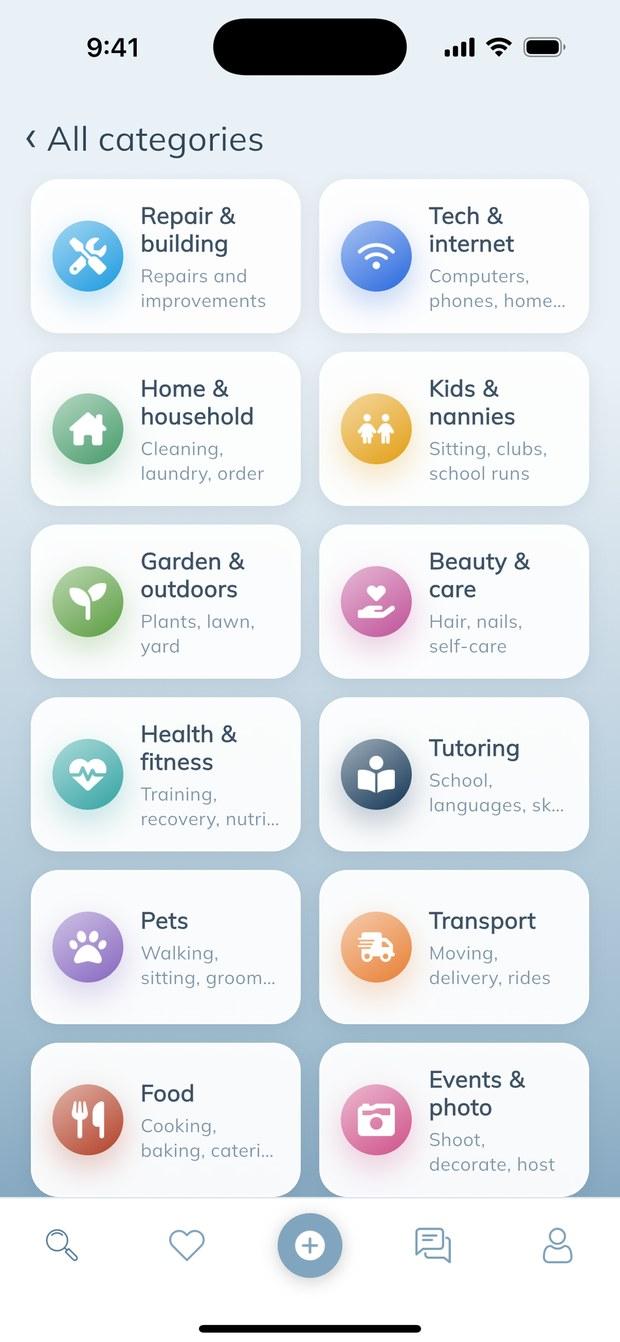
Browse the catalogue
If you would rather start from the work than from the map, the catalogue holds fourteen categories and ninety-one services inside them.
It is the same list you see on this site, and nothing in it is hidden behind a paid tier.
- 14 categories, 91 services
- The same list as on the site
- Nothing hidden behind payment
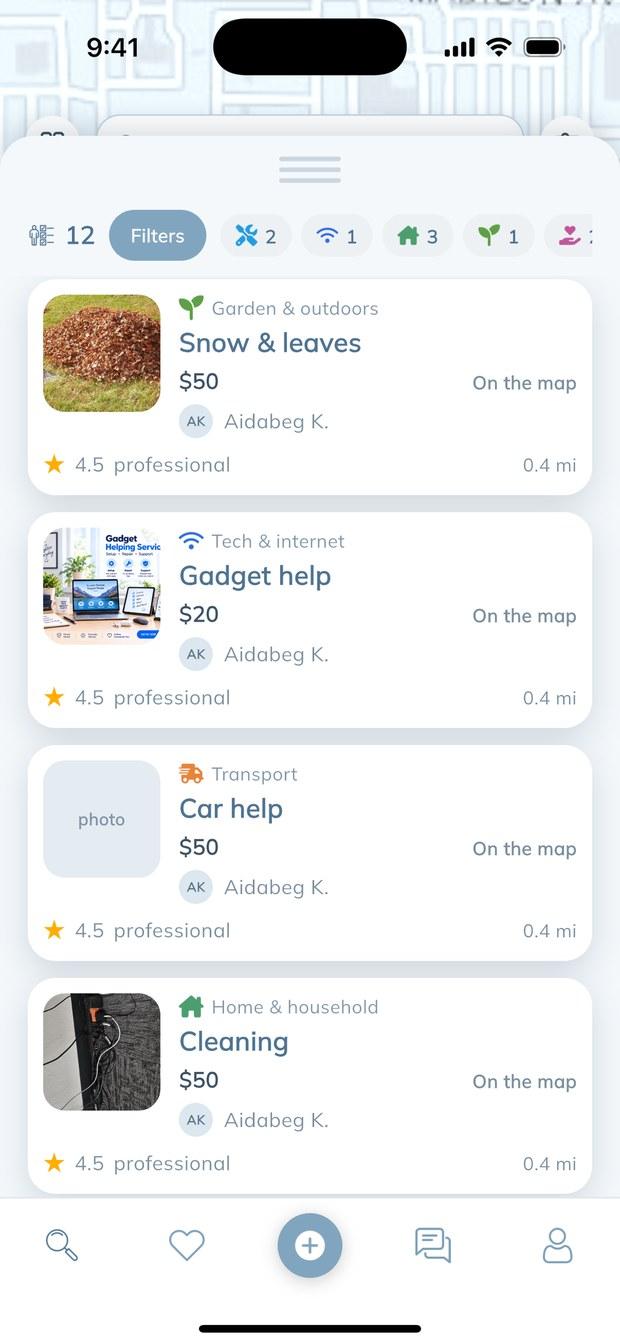
Compare the listings
Each card carries one service and one price — no “from”, no “on request”. Under it sits the distance in miles and the rating with the number of reviews.
The photo is the specialist’s own work, not a stock picture. You can judge a lot before opening anything.
- Price visible before you write
- Distance in miles from you
- Rating with the review count
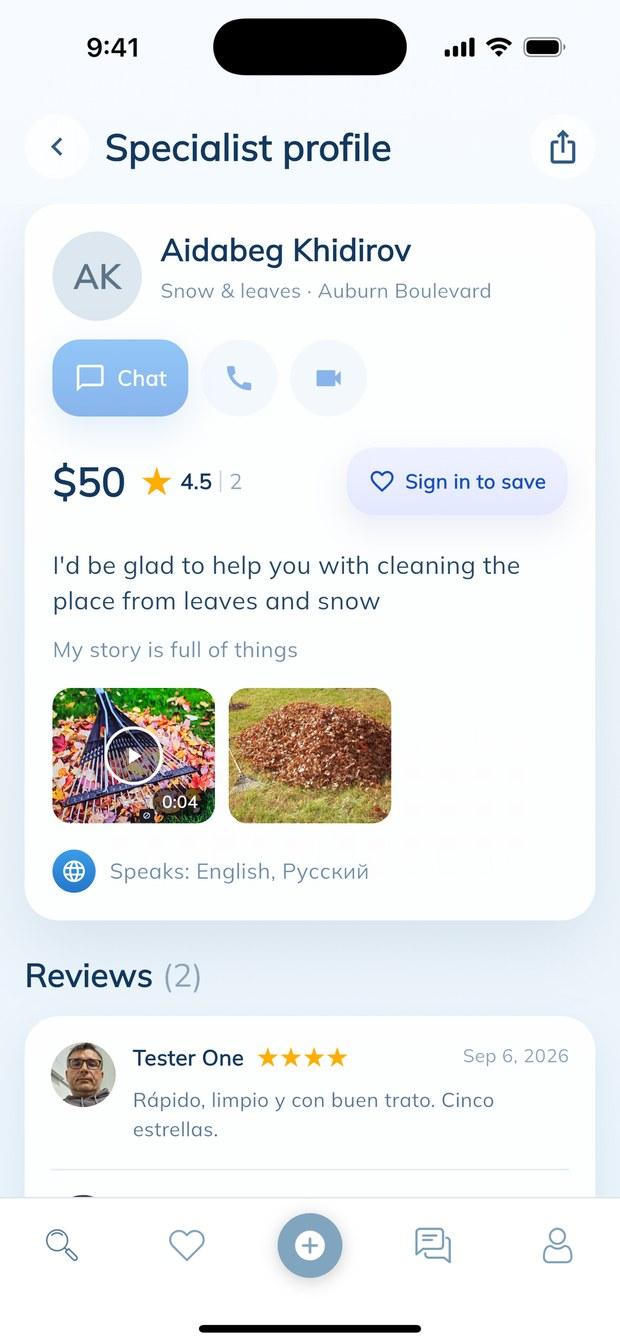
Open the profile, then write or call
The profile holds the price, a description in the person’s own words, photos and video of finished work, the languages they speak, and reviews from people who hired them.
Three buttons sit at the top: chat, voice call, video call. You can send a photo of the problem before anyone travels anywhere.
- Photos and video of real work
- Languages the person speaks
- Chat, voice call and video call
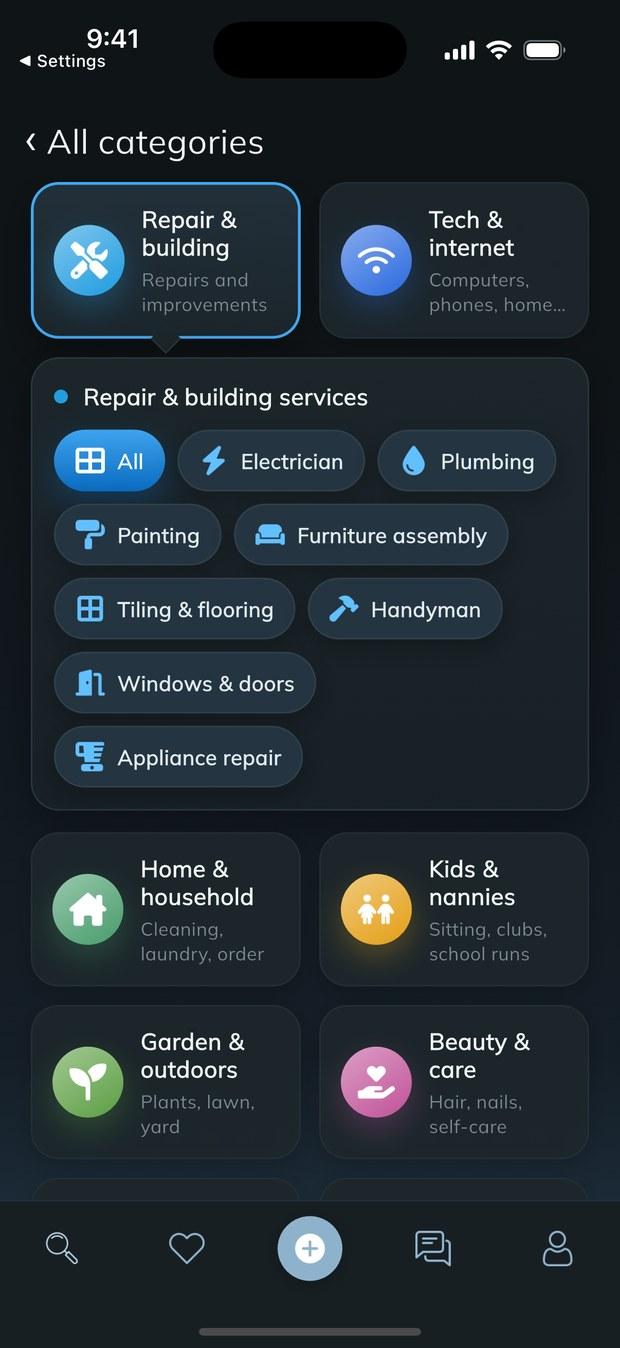
Day or night, it follows your phone
The app takes its theme from the phone. After sunset the map, the catalogue and the chat go dark on their own — nothing to switch.
Colours of the categories stay the same in both themes, so what you learned by day still reads at night.
- Dark theme follows the system
- Same colours in both themes
- Readable map after dark
After the work is agreed
You and the specialist settle the price and the time between yourselves. WhoZapp takes no commission and holds no money. When the job is done, leave a review — it is what the next neighbour will read.
How WhoZapp works in your neighbourhood
WhoZapp shows the people around you. It works like a map, not a directory. Every pin is a real listing. Someone nearby offers that work today. You see the price before writing. You see the distance from your street. You see the rating and the reviews. Then you decide who to contact.
Why the map comes first
A list hides distance. A map shows it at once. Ten minutes away matters for small jobs. A plumber two streets over arrives sooner. A tutor nearby saves the school run. So the map opens first, every time.
What you can find here
The catalogue holds fourteen categories. Inside them sit ninety-one services. Repairs, tech help, cleaning, tutoring and pets. Transport, food, events, paperwork and more. The same list appears inside the app. Nothing is hidden behind a paid tier.
How people describe their work
Each listing carries one service and one price. Specialists add photos of finished work. Some add a short video too. Languages spoken are listed as well. That matters in a mixed neighbourhood. You can read reviews from earlier clients.
Talking before you agree
Chat lives inside the app. You can send photos of the problem. Voice messages work when typing is slow. Voice and video calls work as well. Nobody needs your phone number first. You agree the price and the time yourselves.
When you want to offer help
You can post a listing yourself. Choose a service from the catalogue. Set your own price and describe the work. Add photos so people trust you faster. Neighbours find you on the same map. You keep everything you earn.
What WhoZapp does not do
WhoZapp takes no commission on your work. It holds no money between you. It hires nobody and guarantees nobody. It is a place to meet people. The agreement stays between the two of you. Read reviews and ask questions first.
Safety in a local app
Every listing can be reported. Every person can be blocked. Reports are reviewed within twenty-four hours. You choose who may call you. Your exact address is never shown publicly. Only an approximate area appears on the map.
Free for both sides
Using WhoZapp costs nothing. Posting a listing costs nothing. There is no subscription and no fee. There is no advertising inside the app. The app is free and stays free.
Reviews you can weigh
A review sits next to its service. You see what the person actually did. The rating counts only completed work. Older reviews stay visible for ever. One bad week cannot be hidden. Read a few before writing to anyone.
Getting started today
Install the app and sign in. Add your name and a photo. Open the map and look around. Message someone whose work you like. Agree the details and get it done. Then leave a review for the next neighbour.
People nearby. No commission. No ads.
Open the map, compare profiles, and contact people directly in WhoZapp.